Portraits
The Portrait feature allows you to create still images of your character with customizable emotes, motions, backgrounds, frames, and other decorations. With a wide array of editing options, you can make the most of poses, facial expressions, composition, and more to create a truly unique snapshot!

 Portraits are a character customization option allowing players to create dynamic images showcasing their character. These images appear in contexts such as the player's Adventurer Plate as well as Instant Portraits used before specific duties, linked to a gear set. They can be customized through frames, backgrounds, accent elements, poses, and actions.
Portrait Uses
Portraits are displayed in the following contexts:
- At the start of duties, showing portraits of all party members.
- In the UI when selecting a party member to award a Commendation.
- During Crystalline Conflict introductions.
- Adventurer Plates.
Editing the Portrait
Players can target themselves and select the "Show Adventure Plate" option, then selecting "Edit Portrait". This will present players with the option to edit the "Design" of the portrait, or the "Character" and their pose, expression, etc. Under the portrait preview, players can choose to enable or disable the currently selected motion, enable or disable the character facing/looking at the camera, as well as the option to reset the camera, the direction the character is facing, and the direction of the characters gaze. Players can also adjust the width of the camera angle, as well as the rotation of the character.
Additionally, players can select "Portraits" from the Main Menu, which will bring them to a list of their saved gear sets, with a preview image of their current Glamour or portrait on the right, as well as the emote, expression and design options selected currently. From here, players can select a gear set and create a portrait that can be auto-assigned when it is equipped. To enable or disable this feature, players can simply toggle the "Use as Instant Portrait" option on or off. Once players have customized a portrait to their liking, they can right click the portrait and select "Import Settings" to copy its setup onto another gear set.
The player character's face must be visible within the portrait frame in order for the portrait to be able to be saved.
Design Elements

Under the "Design" tab, players can customize the portrait with three different elements:
- Background
- Frame
- Accent
The majority of these elements are acquired through various means including Achievements, Minions and most commonly, Framer's Kits. The following pages document all the elements and how to get them:
You can also preview these elements together using the Adventurer Plate and Portrait Previewer tool!
Character

Under the "Character" tab, players can adjust the pose, expression, and lighting of the Portrait.
Limitations
The portrait system has some limitations that may not be immediately obvious. Essentially, a portrait acts as a "living snapshot" of the character at the time it was created or last updated. If a portrait is not customized, or if certain changes are made to the character's appearance since creating the portrait, it will revert to a default neutral pose and blue background nicknamed the "DMV portrait" by the community. This default state appears under the following conditions:
- No customization has been performed (initial state)
- A piece of gear's glamour is changed, and the portrait is not updated via the "Update Gear Set" button. Since Patch 7.1, portraits can also be set to update automatically when glamours are changed.
Unlocking Additional Designs
Players can get Framer's Kits for new Portrait elements by doing the following:
- Participating in PvP battles and gaining Series levels,
- Purchasing Kits from the Crystal Quartermaster in the Wolves' Den Pier in exchange for 1500
 Trophy Crystals,
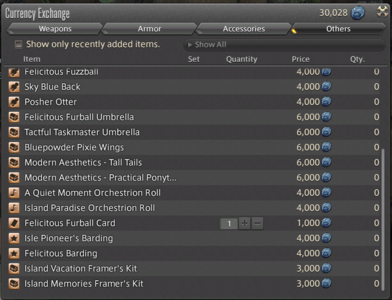
 - Purchasing Kits from the Horrendous Hoarder through Island Sanctuary in exchange for
 Seafarer's Cowries,
 - Unlocking Kits as achievements rewards,
- Purchasing Kits from Allied Societies using Societal Currency.
Certain Framers' Kits can also be unlocked through Trials and quest lines, such as The Four Lords.
You can preview any combination of portrait and adventurer kit elements in the game using this page.
-
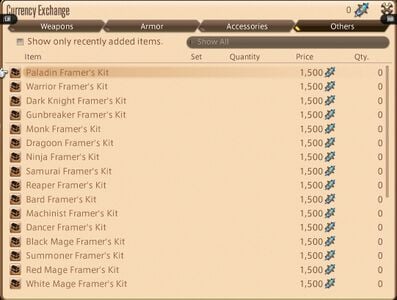 Jobs Framer's Kits from the Crystal Quartermaster
 -