Command Panel
Job actions, emotes, macros: all kinds of actions can be assigned to the command panel as icons. It's ideal for those things you want to keep close at hand, but don't need on your HUD, whether that's your favorite mounts, gear sets, or emotes that only see occasional use. Opening at the press of a button, the command panel keeps shortcuts easily accessible without creating additional on-screen clutter.

 The Command Panel is a user interface feature added in patch 7.4 that allows players to register up to 100 actions and commands to collapsible 5x5 panels instead of their regular hotbars. Each panel contains 25 slots, and a total of four panels are available. Any action or command that can be registered to the hotbar can be registered to the Command Panel.
Accessing the Command Panel
The Command Panel can be found under the Extras tab of the Actions & Traits menu. In addition, players may also use the chat commands /commandpanel or /cmdpanel.

Registering Actions and Commands
The following is transcribed from the Patch 7.4 Notes:
Mouse and Keyboard
Drag and drop your desired action or command to your desired slot in the Command Panel.
Gamepad
Open the Hotbar Palette, then select Assign to Command Panel.
Registered actions and commands can be moved or removed from the Command Panel using the subcommand menu.
Using the Command Panel
Mouse and Keyboard
Actions and commands assigned to the panel can be clicked directly with your mouse. Individual command panel slots cannot be keybound.
Gamepad
Use the directional buttons to select your desired command or action, and press the A (X) button to execute it. You can hold the Y (△) button to move the cursor two slots, allowing for swift navigation.
You can assign the Command Panel to left thumb-click (L3) or right thumb-click (R3) via Gamepad Customization (Controller Customization) under the Gamepad Settings (Controller Settings) tab of the System Configuration menu.
Command Panel Settings
You can access Command Panel settings and the four panel-specific shortcuts by selecting the gear icon at the top right of the panel, or via the panel subcommand menu.
Command panel shortcut icons can be chosen by selecting Set as Command Panel Icon from the subcommand menu of an action or command, thereby registering its graphic as the shortcut icon for the corresponding panel.

Assigning Custom Icon to individual Command Panel Shortcut
From inside Command Panel Settings, you have 4 individual Command Panel Shortcuts (labeled 1 to 4), which you can drop and place on your regular hotbars. Each shortcut will open a particular command panel tab.
To assign a custom icon to command panel shortcut, you need to first place an item or action or anything into a command panel tab from which you want to "borrow" an icon from. Then right-click on said item/action/anything, and select Set as Command Panel Icon from dropdown menu. You may now remove the item/action/anything from command panel tab; the icon assignment will persist indefinitely.
As of initial release of this feature, you cannot assign an icon that was set on user macro as command panel icon. When placing user macro with custom icon into command panel and trying to set its icon as command panel icon, you get an error. It is unknown if it is a bug, or desired outcome.
Gallery
-
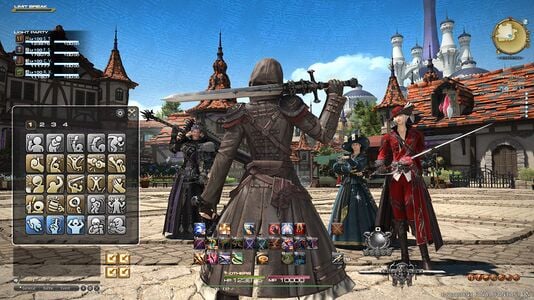 Command Panel Preview in patch 7.4 site
