Strategy Board

 The Strategy Board, also known as the Whiteboard, is a tool for boss encounter planning, specifically for high-end duties that require each player to take specific positions throughout the encounter. Introduced in patch 7.4, it is an essentially an in-game version of external planning sites such as raidplan.io. Players can share strategies to others via codes and can display it during combat. This feature can be accessed via Strategy Board under Party in the main menu, or through the chat command
 /strategyboard.
Creating New Strategy Boards
The following is transcribed from the Patch 7.4 Notes:

New strategy boards are created by selecting the "New Strategy" button on the Strategy Board List window and selecting one of the following three options.
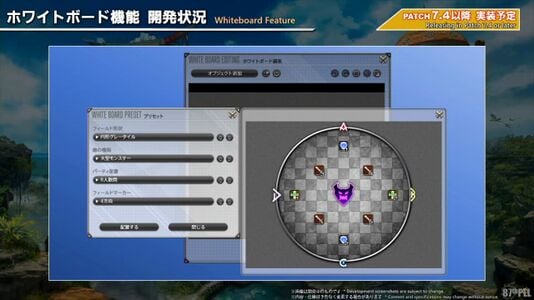
- Preset Strategy Board: Select from a variety of field types, party positioning icons, and other basic elements to quickly create a strategy board.
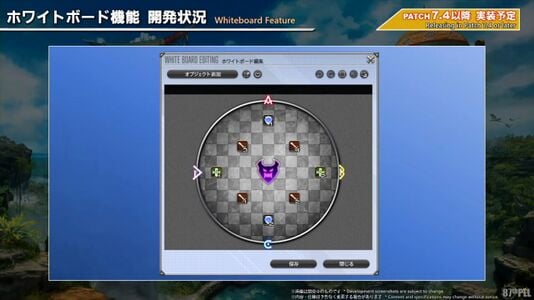
- Black Strategy Board: Create a blank strategy board without any preset configurations.
- Share Code Strategy Board: Enter a text-based code to load a strategy board created by another player.
Strategy Board Editor

This interface allows you to add and adjust different strategy board objects.
To edit a saved strategy board, select Edit Strategy Board from the Strategy Board List subcommand menu, or click the Edit icon at the bottom left of the preview window.

Adding Objects
Choose icons pertaining to the class or job of party members, enemy attack types, and other signs and symbols to add to the strategy board. These objects can also be repositioned, rotated, and resized.
To select multiple objects, hold Ctrl and left-click the icons you wish to select together. When using a gamepad, press the Y (△) button to select multiple objects.
Utilizing Object Layers
The placement of different object layers can be adjusted via the Object Layers window, with the list representing layer height in descending order.
Multiple object layers can be selected from the list in the same manner that multiple objects can be directly selected on strategy boards.
Gridlines, gridline snapping, and object snapping can be toggled via the buttons in the top right of the Strategy Board Editor window.

Saving Strategy Boards
Up to 50 strategy boards can be saved at a time, with saved strategy boards displayed on the Saved List.
Folders can also be created to help organize saved strategy boards. Up to 10 strategy boards can be stored within a single folder.

Reviewing Strategy Boards

Saved strategy boards can be reviewed while undertaking duties. Review strategies via your chosen strategy board's subcommand menu, or by selecting the Review Strategy icon on the bottom left of the preview window.
When reviewing strategies, you can switch between other strategy boards saved within the same folder.

You can also freely adjust the size of the board and lock it to prevent it from being closed, as well as adjust DPS icon display types and icon highlights by selecting the Strategy Board Settings icon at the bottom left of the window. (D1, D2, D3, D4 are commonly used in Japan; M1, M2, R1, R2 are commonly used in NA and EU).

Sharing Strategy Boards
Created strategy boards can be shared with other players via two different options listed in the Saved List subcommand menu.
Share with Party
Share created strategy boards or entire folders with current party members, who will be notified upon receipt. Shared strategy boards will be temporarily saved to the Shared List. Up to 20 shared strategy boards can be temporarily saved to the list, which is accessible via the View Shared List button on the Strategy Board List.
To permanently save a shared strategy board and thereby transfer it to the Saved List, select Save from the board's subcommand menu on the Shared List window.
- If a new strategy is shared with you when the Shared List is at full capacity, the oldest temporarily stored strategy board will be automatically deleted.
- If a blacklisted player shares a strategy board with you, a prompt will display confirming whether you wish to view the board.
Create Share Code
Generate text-based codes to share with other players, which they can then enter when creating their own strategy board.
To input a code generated by another player, select the Share Code Strategy Board option when creating a strategy board.
- Codes can only be used to share a single strategy board.
- Please note that codes exchanged via chat may be affected by player chat filters, and in some cases share codes may exceed the character limit for chat messages.
Real-time Sharing
Modify a strategy board together with party members. This option is accessible by selecting Share on the strategy board subcommand menu and then selecting Real-time Sharing.
While all players will be able to view the strategy board, only the player who initiated real-time sharing can make direct edits.
Any changes made to the strategy board are saved automatically to the Shared List of any player reviewing it.
Notes
Unlike external sites, the Strategy Board does not allow players to load the specific arena floor for an encounter of interest, which is a disadvantage because many positioning cues often utilize the arena floor design. However, one advantage of the in-game feature compared to external sites is the ability to easily overlay it during combat instead of needing a second monitor to display an external raidplan.
Some players use the Strategy Board to make humorous images or memes (including some that are potentially NSFW).
Images
-
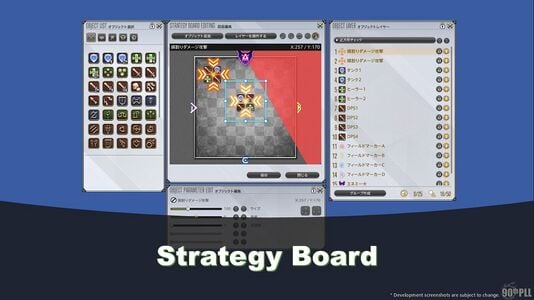 Strategy Board as shown in Letter from the Producer LIVE Part XC
 -
-
-
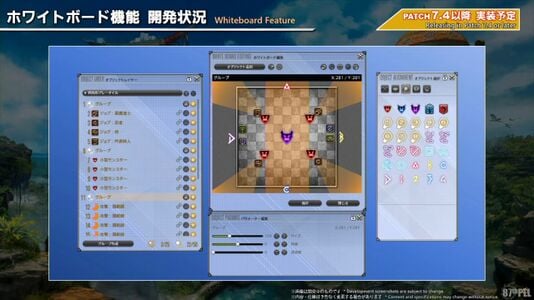 The strategy board demonstrating a mechanic from AAC Cruiserweight M1 (Savage)


